Barcodes and labels: speed up item handling in Dolibarr
Receiving, stocktaking, counter sales: how to assign barcodes to your products, print labels and connect a scanner to Dolibarr without manual entry.
Why typing references by hand costs you money
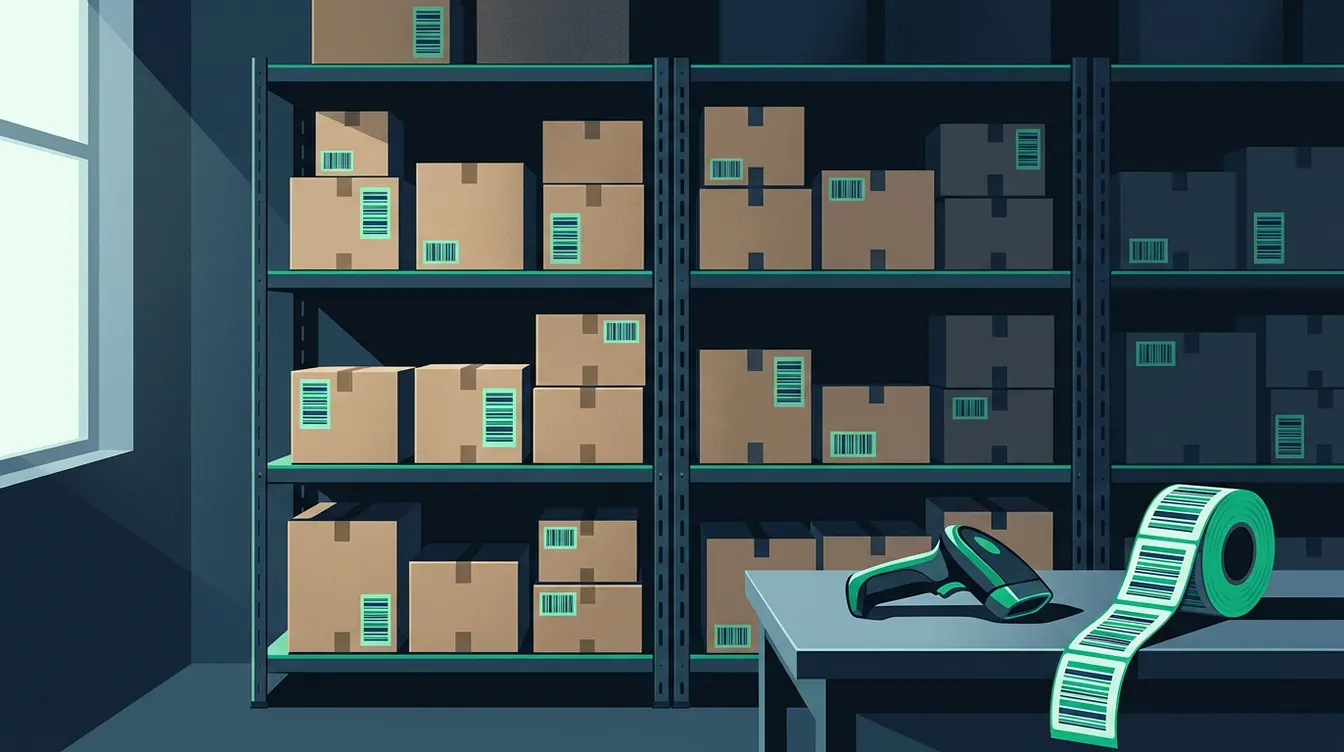
A reference typed by hand is a chance to make a mistake. A forgotten zero, an extra hyphen, two similar items mixed up: the error goes unnoticed until the stocktake, or until a customer receives the wrong part. At goods receipt, the operator compares a delivery note with the boxes and types the references one by one. At stocktake, they start again on hundreds of lines. At the counter, they search a list for a product while the queue grows. The barcode removes that step. The scanner reads the code, Dolibarr finds the product record, and only the quantity is left to enter. The gain is not only speed. It is the reliability of your stock, and so of the delivery promises you make to customers. This article describes the full approach: defining the codes, printing them, equipping a scanning station and using it in the three situations where manual entry does the most damage.
Assign a barcode to each product
Dolibarr lets you store a barcode on each product record, with an associated encoding type. First you enable the barcode module from the module list, then you choose the encoding types you will use. Two cases arise. If your suppliers deliver items already marked with a standard retail code, copy that code as is onto the record: the scanner will read the manufacturer's label directly. If your items have none, you create one. Dolibarr can suggest an internal code based on a numbering rule, which you should check in the module configuration. For an existing catalogue, do not re-enter everything: prepare a file with the reference and the code, then import it. To correct many records at once, a tool for bulk product editing saves hours of clicking. Before printing anything, check that no code is used by two different products.
- Choose a single encoding type per item family, so the scanner and the labels stay consistent.
- Reuse the manufacturer's code when there is one, rather than inventing a second one for the same part.
- Create short internal codes with no hidden meaning, because a rule that is too clever becomes unreadable.
- Test the import on a few products before loading the whole catalogue.
Print labels that are readable and durable
Dolibarr offers a function to print sheets of barcode labels, usable for products or third parties. You choose a sheet format from those provided, select the items, then generate a file to print. The tricky part is not the software, it is the medium. A label that peels off or whose ink fades is useless. In a warehouse, favour an adhesive suited to boxes and shelving, and a printer whose resolution renders the bars sharply. Run a paper test before printing a hundred sheets: scan the label with the scanner, not only with your eyes. Always place the code in the same spot on the packaging, on a flat surface, not on a corner. If you need a format that Dolibarr does not offer, the solution is a custom template, which we build as part of our custom development. Also print location labels if you manage several warehouses.
Connect and set up a scanner
A USB scanner behaves like a keyboard. It sends the characters of the code, then a confirmation key, into the field where the cursor is. There is usually no driver to install. Everything depends on the settings. Check the keyboard layout: a scanner set to another layout turns digits into symbols. Check the suffix: it must send a confirmation at the end of each read, otherwise the operator has to press the key themselves. For mobile stations, a wireless scanner or a smartphone reader can work, provided the connection to Dolibarr stays stable throughout the warehouse. Test in a plain text field before opening Dolibarr: what you see on screen is exactly what Dolibarr will receive. Then, in Dolibarr, place the cursor in the search field or the line entry field, scan, and check that the right record appears. If a family of codes returns nothing, the code is not saved on the record, or the type differs.
Receiving, stocktaking and counter sales: three practical uses
At receipt, open the relevant supplier order, scan each item received, then enter the counted quantity. An unknown item is spotted immediately, instead of showing up three weeks later as a stock discrepancy. Our article on structuring supplier purchasing details the process that comes before this step. At stocktake, walk the shelves location by location, scan, count, and let Dolibarr propose the correction movements. Do it zone by zone rather than across the whole warehouse at once, so you can check each discrepancy while the shelf is still in front of you. At the counter, for a direct sale, scanning replaces the on-screen search: the item is added to the line and the salesperson announces the total. If retail is a significant part of your business, see our page on solutions for retail. In all three cases the rule is the same: one scan, a visual check of the displayed description, then the quantity.
First step: a pilot on one item family
Do not code the whole catalogue on day one. Take a fast-moving item family, for example your fifty best-selling references, and run a two-week pilot. Assign the codes, print the labels, equip a single receiving station with a scanner, and note every anomaly: unreadable code, duplicate, item not found. Fix them, then extend family by family. Train operators on site, with their real boxes: ten minutes of hands-on practice is worth more than a manual. If you are unsure about the configuration, the choice of labels or the import of existing codes, contact us and describe your receiving flow and the number of items involved. We will tell you what can be set up in Dolibarr as it is and what requires development.
Need help with Dolibarr?
Our team of Dolibarr experts is available to support you in your projects: implementation, migration, custom module development and training.
Related articles
Shipments and delivery notes: deliver without errors using Dolibarr
Incomplete parcels, wrong items, partial deliveries lost from view: here is how to prepare shipments in Dolibarr and follow backorders through to the invoice.
Read articleHosting Dolibarr: in-house server or managed hosting, how to choose
Backups, updates, access, data location, responsibilities: the practical criteria to decide where to host your Dolibarr instance, in-house or with a provider.
Read articleMaintenance contracts and service calls: organize your after-sales support with Dolibarr
A contract spreadsheet always ends up missing a renewal date or an unbilled service call. Here is how to structure contracts, intervention sheets and invoicing in Dolibarr.
Read article