Quotes and invoices: customizing your PDF templates in Dolibarr
Pick a PDF template, add your logo, complete the legal mentions, adjust the columns: a method for clean, credible Dolibarr quotes and invoices.
Why the look of a document changes your customer's response
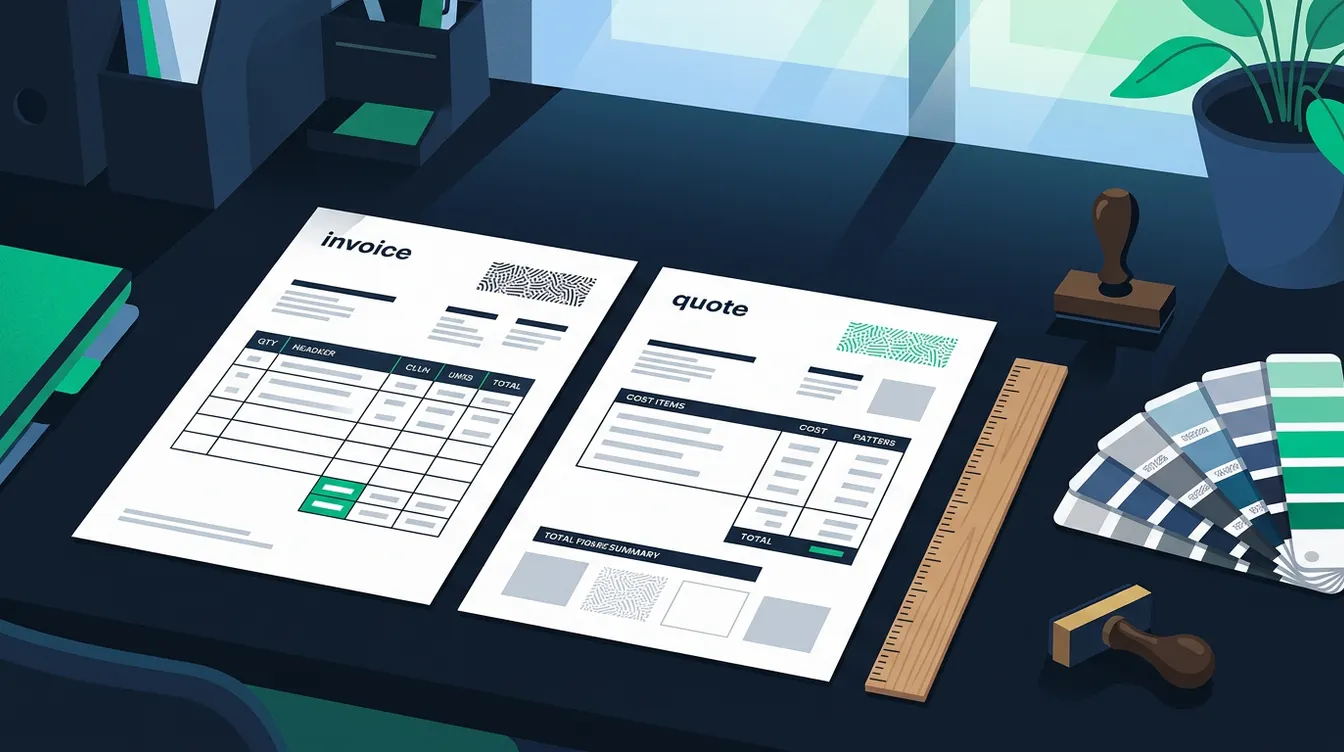
A quote with a pixelated logo, overlapping columns or missing payment terms triggers phone calls. The customer asks what a line means, who to pay, how long the offer stays valid. Each question delays the signature or the payment. The PDF is often the only document from your company that the customer reads in full. It must be readable, complete and consistent with your identity. Dolibarr provides several ready-to-use templates for commercial proposals, orders and invoices. The default setup works, but it stays generic. A few hours of configuration are enough to get a clean result that the whole team then reuses without thinking about it. This article follows a logical order: choose the template, enter the company data, set the content, then test with real documents before rolling it out.
Choosing the right template for each document type
For each document type, Dolibarr offers a list of templates that you can enable in the configuration of the relevant module. You can enable several and choose which one is the default. Users can then switch template when they generate the document. The differences are mostly about layout: some templates show a discount column, others a heavier footer block, others are designed for very detailed lines. For a service business, a plain template with few columns reads better. For trading with references and units, prefer a template that shows that information. Avoid enabling every template: the more there are, the more documents differ from one salesperson to another. Keep one or two, and use the same style for quotes, orders and invoices so that the customer immediately recognizes your letterhead.
Entering your company identity before touching anything else
Most visible flaws come from the company record, not from the template. The PDF pulls the name, address, legal identifiers, bank details and logo entered in the company configuration. If a line is empty or wrong, it is wrong on all your documents. First check the spelling of the company name and the legal form. Then check the tax and registration identifiers specific to your country: a Luxembourg, Belgian or French company does not display the same references. For the logo, upload a sharp image in a suitable format, without excessive white margin. A logo that is too tall crushes the header and pushes the table down. If you have a second logo for light backgrounds, enter it too. Save, generate a test document and look at the result in print, not only on screen. It is the best way to spot a framing problem.
Setting the content: columns, mentions and terms
Once the base is sound, adjust what the document displays. The options of the invoicing module and the quote module let you hide or show certain elements, for example references, detailed descriptions or discounts. Here are the points to review before going live.
- Check that the legal mentions required in your country appear on the invoice, relying on your accountant rather than on a list found at random.
- Set default payment terms and a default payment method on each third party, so that they appear without manual entry.
- Write a short footer text: late payment penalties, bank details, and a retention of title clause if relevant.
- Add a default public note for quotes, for example the validity period of the offer, instead of retyping it each time.
- Check how a very long line and a multi-page document render, which is where overflows appear.
Adapting the layout when settings are no longer enough
The native options cover many cases, but not all. You may want a colored banner, a signature block at a precise spot, columns in a particular order or a different presentation per business line. In that case you need to modify the template itself. Dolibarr lets you add your own templates in the extensions directory without touching the core, so a software update does not overwrite your work. This is PHP development work, to be given to someone who knows the structure of the template classes. If you prefer to avoid code, a visual editor such as DolicraftPDFDesigner lets you build the template by drag and drop. In both cases, start from an existing template rather than a blank page, keep the logic of the variables and test every change on real documents: with a discount, with several VAT rates, with a long description.
Testing, validating and rolling out to your team
A template is only ready once it has passed real cases. Create three or four test documents: a simple quote, a multi-page quote, an invoice with a deposit, a credit note. Generate them, open them in two different PDF readers and print one. Have someone who did not design it review the result: they will spot what you no longer see. Check the language too, because a foreign third party should receive a document in their language if you have set it up that way. Once validated, set the default template, remove the unused ones and tell the team about the change. Documents already issued do not change by themselves: a validated invoice keeps its original PDF, and that is normal. Finally, write down your settings in a short internal document, so you can find them again during a migration or reinstallation. If you have to repeat this work across several entities, support from our implementation team avoids discrepancies.
Your next step: a test document today
Take the last invoice you sent and look at it as a customer discovering it would. Is the logo sharp? Are the bank details there? Are the payment terms clear? Note each flaw, then deal with them in order: company record, template choice, content, layout. If the native output cannot give you the result you want, or if you run several business lines with distinct presentations, talk to us. We review your current documents and tell you what can be solved through configuration and what needs a custom template. You can also see the result on a test instance before deciding. The simplest way is to use the contact page and attach an example of a quote or invoice you want to improve.
Need help with Dolibarr?
Our team of Dolibarr experts is available to support you in your projects: implementation, migration, custom module development and training.
Related articles
Dolibarr 23: What You Need to Know
Overview of Dolibarr 23: enriched analytical accounting, task categories, shipment signing, web portal improvements and extended REST APIs.
Read articleAutomating Invoicing with Dolibarr
How to set up automatic invoicing, reminders and payment tracking to save time every day.
Read articleSync Dolibarr with Pennylane painlessly
Your accountant is on Pennylane, your operations on Dolibarr? Here is how to connect both and never re-enter an invoice again.
Read article